This guide explains how to identify the correct charging port and safely charge your Microsoft Surface Pro 7 and Surface Pro 10 tablets.
Please refer to the numbered image above while reading this guide:
Please refer to the numbered image above while reading this guide:
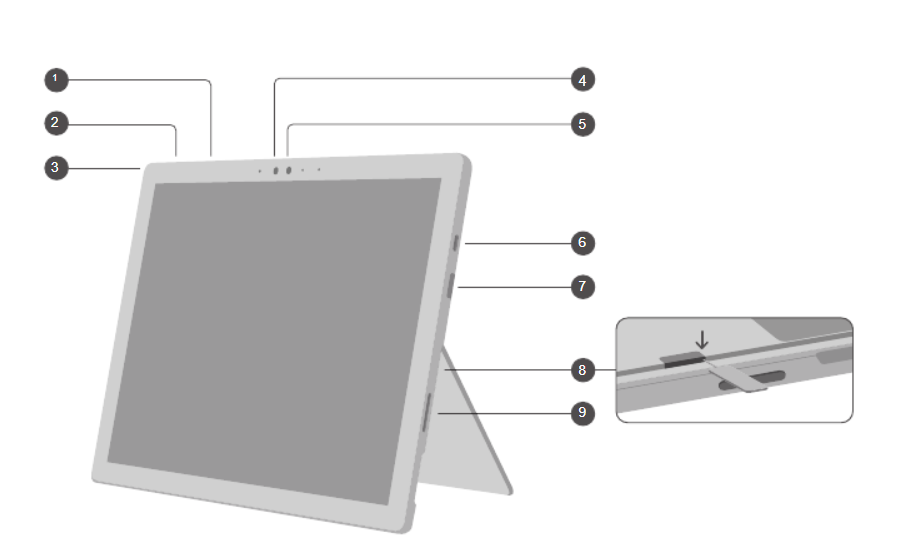
Number | Port / Component |
| 1 | Volume Buttons |
| 2 | Power Button |
| 3 | Headphone Jack |
| 4 | Windows Hello Camera |
| 5 | Front-Facing Camera |
| 6 | USB-C Port |
| 7 | USB-A Port |
| 8 | Nano SIM Card Tray |
| 9 | Surface Connect Port (Charging Port) |
1. What You Need
Official Microsoft Surface charger
Power outlet (wall socket)
 Always use the original or Microsoft-approved charger for safe charging.
2. Charging the Microsoft Surface Pro 7
1. Locate Port 9 – Surface Connect Port on the side of the tablet.
2. Attach the magnetic Surface charging connector to the port. The connector will snap into place automatically.
3. Plug the charger into a wall power outlet.
4. The charging light on the connector turns ON, confirming charging.
 The tablet may be ON or OFF during charging.
3. Charging the Microsoft Surface Pro 10
The Microsoft Surface Pro 10 can be charged using either of the following methods:
 Method 1: Surface Connect Charger (Recommended)
Charging Port:
 Surface Connect Port (magnetic charging port on the side of the tablet)
Steps:
1. Locate the Surface Connect port on the side of the tablet.
2. Attach the magnetic Surface charging connector. The connector will snap into place automatically.
3. Plug the charger into a wall power outlet.
4. The charging light turns ON, indicating that charging has started.
 The device may remain ON or OFF while charging.
 Method 2: USB-C Charger (Supported)
Charging Port:
 USB-C port
Steps:
- Locate the USB-C port on the tablet.
- Connect a USB-C charging cable to the device.
- Plug the other end into a USB-C power adapter and wall power outlet.
- The tablet will begin charging automatically.
 Use a high-quality USB-C charger designed for tablets or laptops.
4. Important Charging Tips (For Both Devices)
- Do not use damaged cables or chargers.
- Avoid charging near water or moisture.
- Place the tablet on a flat, well-ventilated surface while charging.
- Do not cover the tablet during charging.
- Unplug the charger once the battery is fully charged.
5. Charging Status
- A battery icon appears on the screen showing charging progress.
- The charging light on the cable indicates power is connected.
Was this article helpful?
That’s Great!
Thank you for your feedback
Sorry! We couldn't be helpful
Thank you for your feedback
Feedback sent
We appreciate your effort and will try to fix the article